Posts

Showing posts with the label VSTS

Setting VSTS variables from PowerShell

Image
Snapshot of my Environment Tear-up Release Phase I was using a VSTS release pipeline to build an Azure environment today with ARM Templates, and needed to set up a secure connection from a Web App to a Blob Storage account so the app could write logs. As with a lot of things in ARM, you can set up the connection and grab the template, but then you end up having a fixed access URL (SAS URL, or Shared Access Signature) in your JSON file: This is bad from a portability and security point of view, as the URL only gives access to one named account, but if you have that URL you can write whatever you want to storage. This URL will also expire in around a year's time - which will mean your site suddenly stops working like it used to!  That'll be an fun and interesting day. Fortunately its easy to create a SAS URL and pass it to a script as a parameter.  This PowerShell will create the access token: $rg = "my-storage-resource-group" $name = "mystorageacc...

Adding personas to work items in VSTS

Image
During the week I finished adding the requirements I started in  my previous post .  I found I needed a few more features - one about Security and one covering setting up the development projects and builds.  I also discovered an extension for VSTS that will help me keep focused on the users while I work. VSTS has a marketplace where you can see all the extensions and install those you think are useful. The one I will install is  Personas , by  Agile Extensions . They make a few VSTS extensions all aimed at making agile development more fun.  Personas is especially helpful for my project, as I don't have a source of real requirements or users, and using personas will help me turn user roles into real personalities. To get started select the Extensions button and Browse the Marketplace: The Marketplace has a large number of plugins and extensions, covering all sorts of functionality.  It's always interesting to look through and see what m...

Setting up Requirements in VSTS

Image
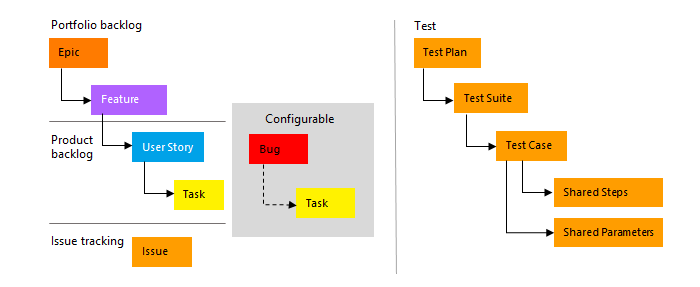
Last week I started a new project with VSTS , setting up some Git repos for my code.  Now it's time to set up some requirements and planning for the development.  I chose to set up an Agile project last week, which is one of 3 default project types in VSTS.  This affects a number of things, including the form the requirements take and the development process used.  Agile is the most flexible, and is the one that I use most often.  Requirements are added to a project as Work Items: Agile Process Work Item Types - from the Microsoft documentation Most of my requirements will take the form of User stories, a common Agile construct.  These stories express a requirement in terms of a Persona, performing some Action to achieve a Result.  When you use this format you tend to drill down on the requirement, writing it in a format that's easy to understand and to develop.  Features are a piece of functionality that you want to deliver, and can be use...

Setting up a new VSTS project

Image
Visual Studio Team Services (VSTS) is an Application Lifecycle Management tool - it handles the whole lifecycle of software development from idea to requirements, planning, development, code reviews, build and release.  It is designed to support your team no matter what methodologies or languages you use.  While most users pay for a license or use their MSDN subscriptions to log in, Microsoft make VSTS freely available for teams of up to 5 users.  I am going to use my free account to plan and develop a new project, and share some tips along the way. Start off at  VisualStudio.com  where you can sign up for a free account.  After you choose your account name, you can create a new project: Choose a Git repository to save your source code, and select the Agile work item process.  This process works well with most Agile methodologies without constraining you to a particular Scrum template.  When you press Create you'll be taken to the new p...

Changing Columns on a VSTS Sprint Board

Image
It's very easy to add columns to a Product Backlog Board in VSTS - you can use the board settings to create new columns, rename and re-order, or even remove columns from the board.  The only special columns are the first and the last one, which can't be removed or deleted since they have a special meaning as far as work goes - they represent the start and end state of the work you're managing. It's more tricky to add columns to a sprint view, though - but this is really useful as it lets you customize the tool to your own workflow and preferences.  You have to be an administrator for the VSTS installation to do this, though - I'll show you how using one of my demo projects. Use the main config menu (the cog wheel) and click on the Process from the Overview tab: My project is an "Agile" project – it uses the Agile template.  From Process you can clone your current process and make your own.  Unfortunately you can't change the proces...

Migrating SVN to Git with Branches

Image
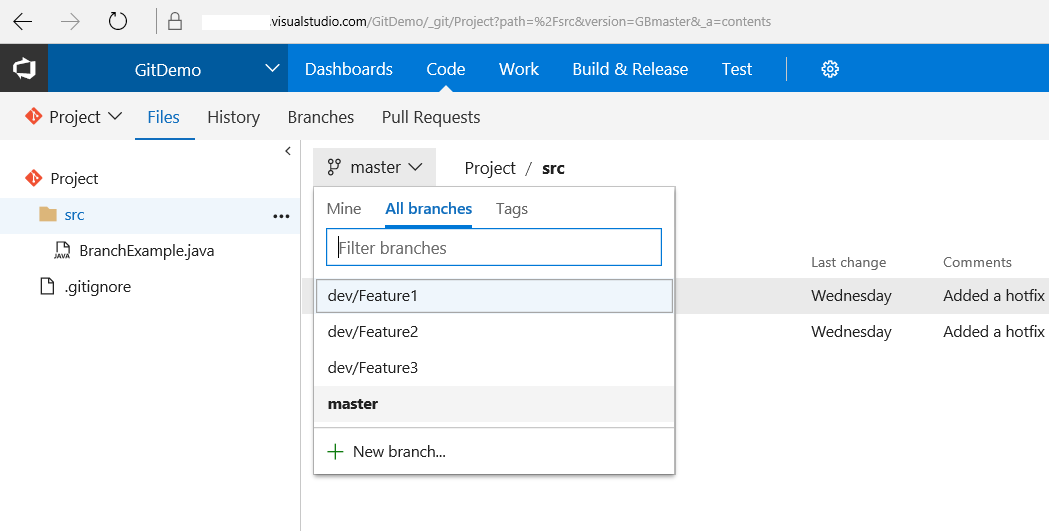
In my previous post  I did a simple migration of a Subversion project to Git.  I didn't want to keep any branches or history so purposely got rid of the history - it was more of a copy than a proper migration.  This time I will show you how to pull across some branches, and check that your commit history survives. Instead of starting with an export of the SVN project, we can use a Git tool designed for Subversion.  Run this command to tell Git where your SVN repo is, and a little about its structure: git svn init http://svn.example.com/subversion/Project ↩ --prefix svn/ -T trunk --b=branch --t=tag Initialized empty Git repository in C:/tmp/Project/.git/ My repository had slightly odd names for the branches and tags folders so I had to use the --b and --t flags tell Git what where to look.  Next you can associate any Subversion accounts with the new Git logins.  To do this, create an authors.txt file, formatted like this: svn_username = Git Use...

Migrating from Subversion to Git

Image
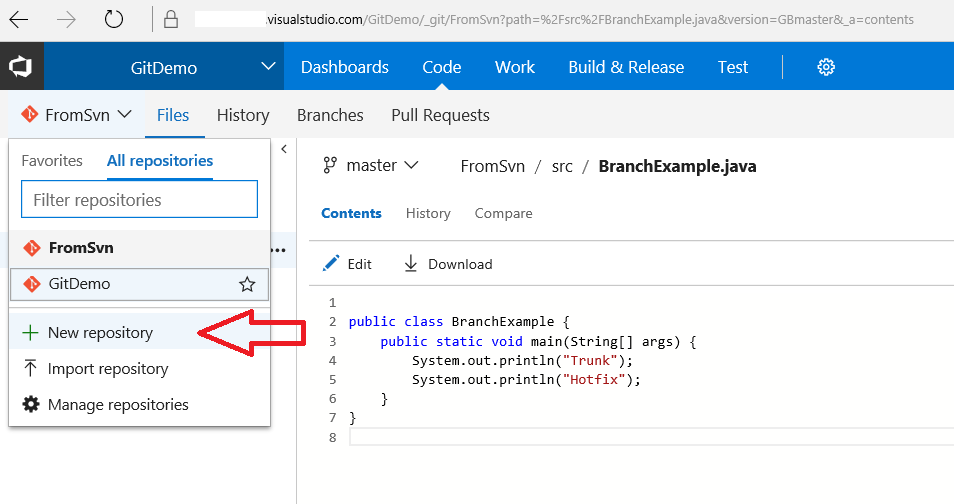
I've been helping a company move its source code from Subversion to Git recently to support their Agile transition. They're moving their build, issue tracking and code repos to Visual Studio Team Services (VSTS). This is the cloud-hosted version of Microsoft's Team Foundation Services, with built in Git hosting, build tasks and a Jira-like issue tracking system. I really like it, plus it's free for teams of 5 or less, making it perfect for my development needs at home. Check it out at VisualStudio.com  Most of my customer's projects don't need to keep their Subversion history - unfortunately they had no policy for commenting commits and most check-ins have empty messages so aren't of much use. The teams have made a conscious decision to abandon the past and drop the history. We will keep the old SVN repos alive for a while so if we really need to we can look back at changes, but don't expect to use it much. The simplest way to migrate these proj...